Wishlist - Save and share favorite products
Save and share products directly within the interactive publication. This feature is available when a data source is connected.
Follow the steps below to enable the feature on your publication:
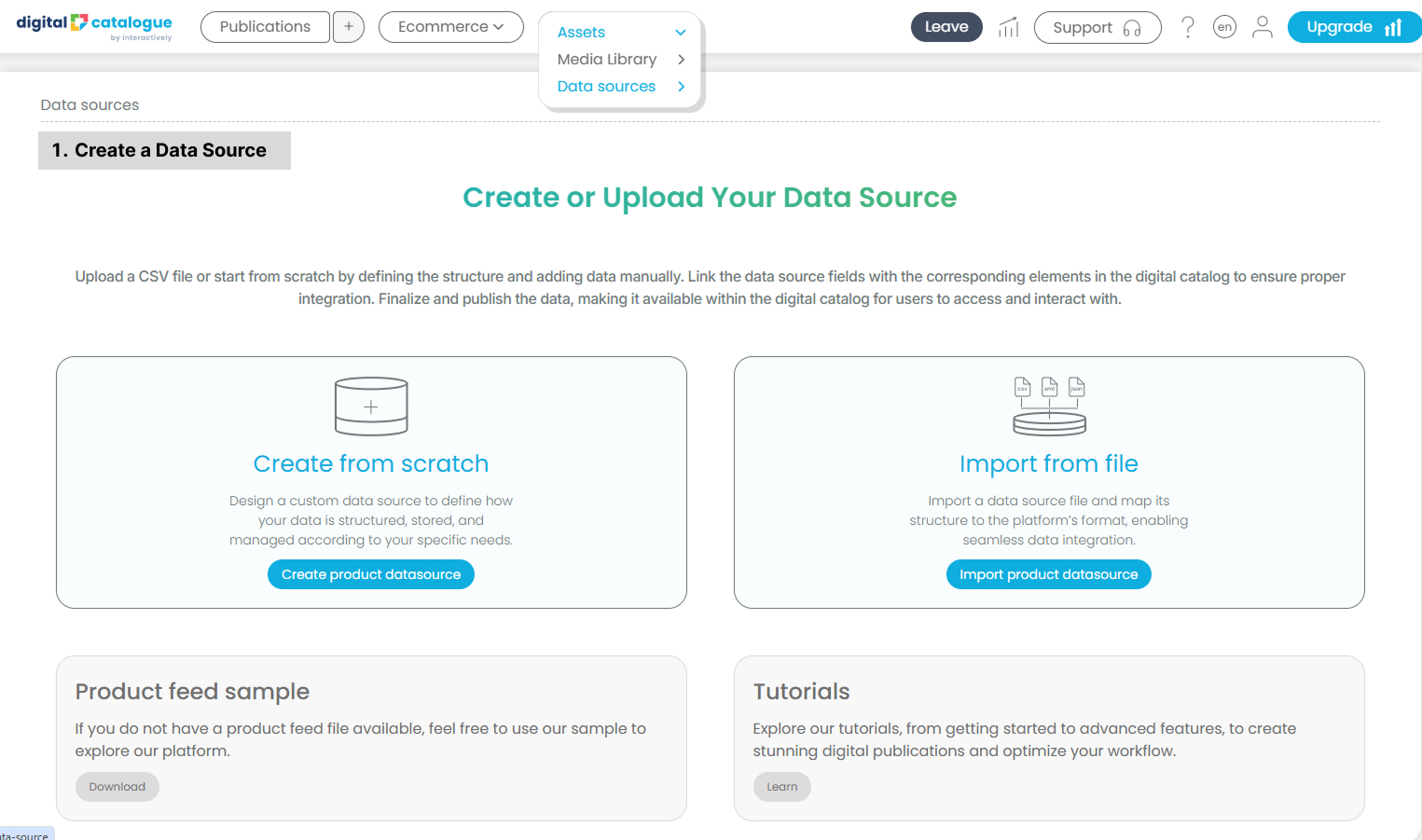
- Create a Data Source.
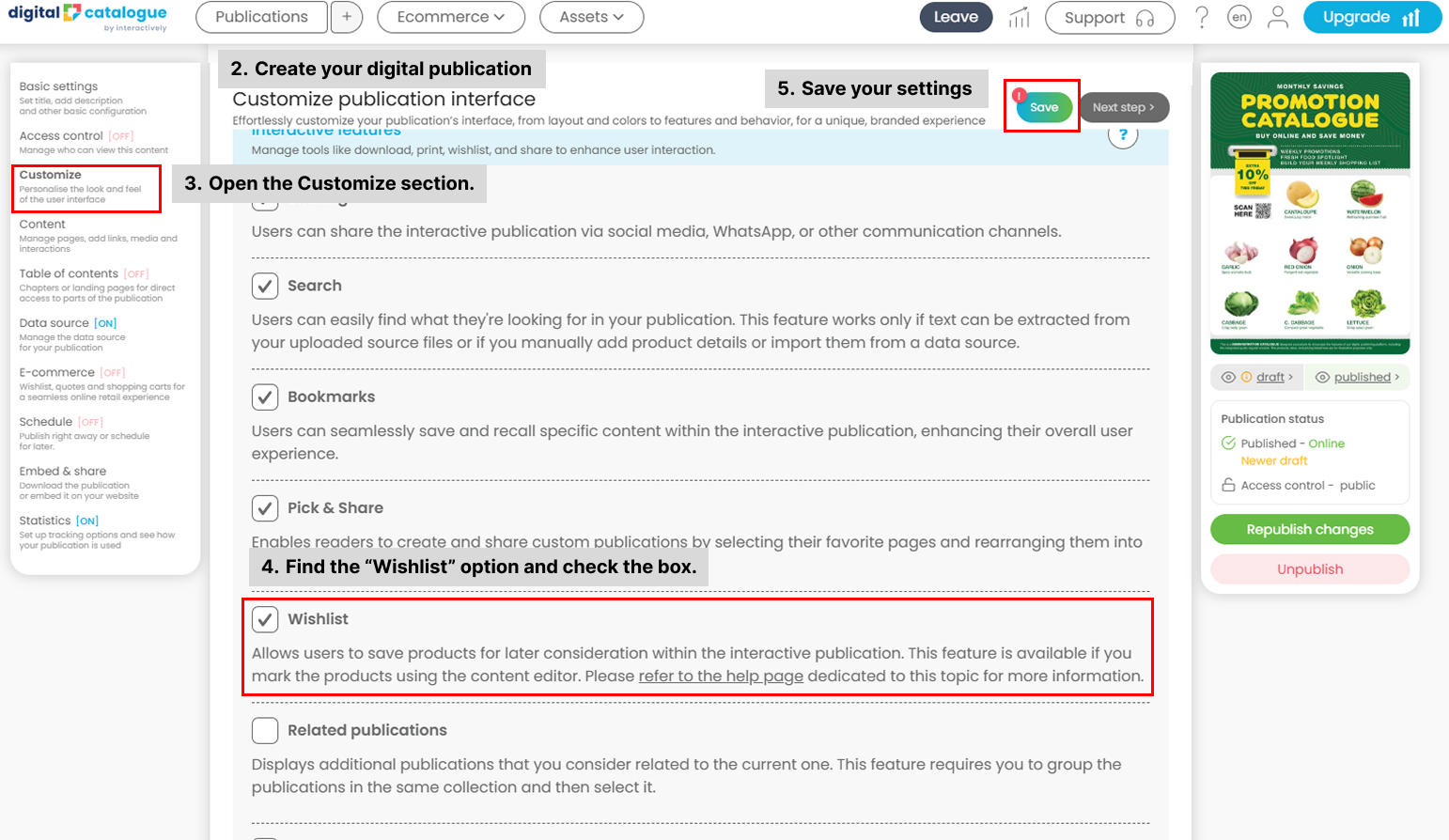
- Create your digital publication and connect a data source to get started. For more details, see how to create a publication here and how to connect a data source here.
- Open the Customize section.
- Find the “Wishlist” option and check the box.
- Save your settings.
Once saved, the feature is enabled and ready to use.
You can find this option in the top-right corner of your publication menu.
Each page includes interactive product hotspots that display key product details directly on the page. You can add these manually in the CMS Editor, or they will be automatically generated if the “Autogenerate hotspots” feature is enabled.
The product page reflects data from your connected data source and also includes a heart icon that lets users add items to their wishlist with a single click.
In the Wishlist section, you can display saved products as a checklist, edit the list at any time, and easily share it with friends and family.
You can learn more about the Wishlist feature and see a live demo here.